
How to Enable Wayland in Lubuntu 26.04
Lubuntu 26.04 LTS doesn’t include (yet) the Wayland session. But if you want to make your hands dirty here’s what can easily be achieved. LXQt has dropped the “experimental” label for its Wayland session since version 2.3.0.
Labwc
labwc is in some way the successor of Openbox and therefor much similar in configuration and behavior. Install the following packages:
sudo apt install lxqt-wayland-session labwc swaylock
Open “Session Settings” and in the “Wayland Settings” select “labwc” as compositor and “swaylock” as lock commmand.
Log out and select “LXQt (Wayland)” in the available sessions on the top.
To tweak its settings ~/config/labwc/rc.xml is the main file to edit. Take a look at the documentation.
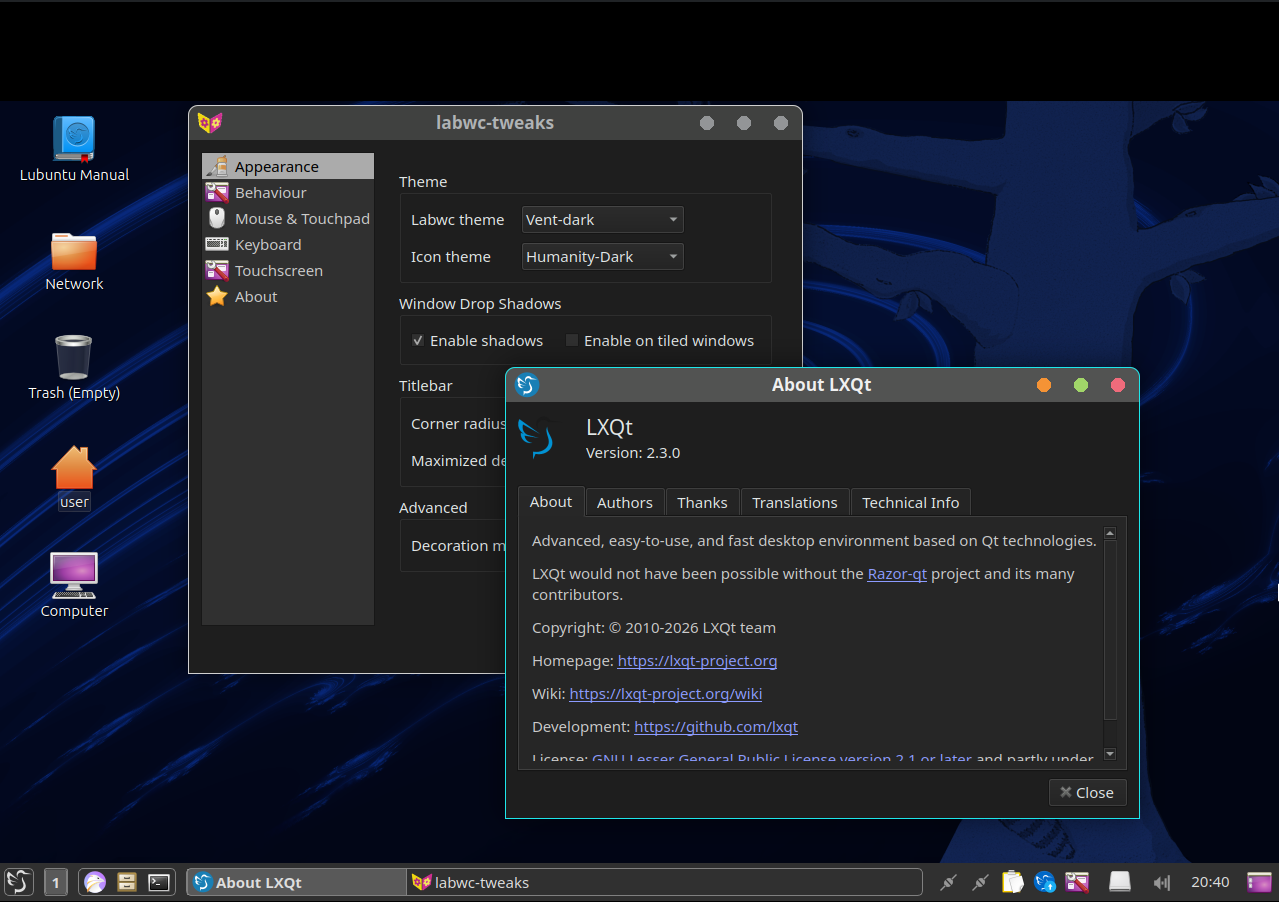
Labwc has also a GUI for its settings but no package is available yet. It can be compiled from source:
sudo apt install build-essential cmake libglib2.0-dev libxml2-dev qt6-base-dev-tools qt6-tools-dev
git clone https://github.com/labwc/labwc-tweaks.git
cd labwc-tweaks
cmake -B build -D CMAKE_BUILD_TYPE=Release -D CMAKE_INSTALL_PREFIX=/usr -W no-dev
cmake --build build --verbose
cd build && sudo make install
Wayfire
Just install it alongside with Wayfire Configuration Manager:
sudo apt install wayfire wcm swaylock
niri
Latest niri from git can be installed using pacstall. Nothing more is needed except eventually swaybg for the background in the overview, so select “0” or “3” when asked. More than 2GB in /tmp is nedded to compile and it will take some time.
Hyprland
sudo apt install hyprland hyprland-qtutils hyprlock
Hyprland in 26.04 is shipped with version 0.53 and some configuration errors will be shown which can be fixed by downloading the updated configuration:
mkdir ~/.config/lxqt/wayland/
cd ~/.config/lxqt/wayland/
mv lxqt-hyprland.conf lxqt-hyprland.conf.orig
wget https://raw.githubusercontent.com/lxqt/lxqt-wayland-session/368b14e726b4b728aa502c9aaddc67bf6e7c15fe/configurations/lxqt-hyprland.conf
Sway
sudo apt install sway -swaylock --no-install-recommends
kwin-wayland
sudo apt install kwin-wayland systemsettings
Kwin’s configuration module may require more plasma packages. See also WM Integration Files.
Notes
-
Some panel popups aling to screen border instead of panel border (Qt issue), consider moving it to the top.
-
The clipboard manager “Qlipper” included supports Wayland only in its most recent version, so disable it under Wayland by editing it in Session Settings → Autostart → “Start only in X11”.
For Wayland install copyQ, add it to autostart and configure a shortcut for copyq show in the compositor.
- If you switch between X11 and Wayland session consider to edit in
~/.config/autostart/both “Screensaver” and “X Compositor” .desktop files, addingX-LXQt-X11-Only=trueto start them only in the X11 session.
More information about the Wayland settings can be found in the LXQt Wiki.